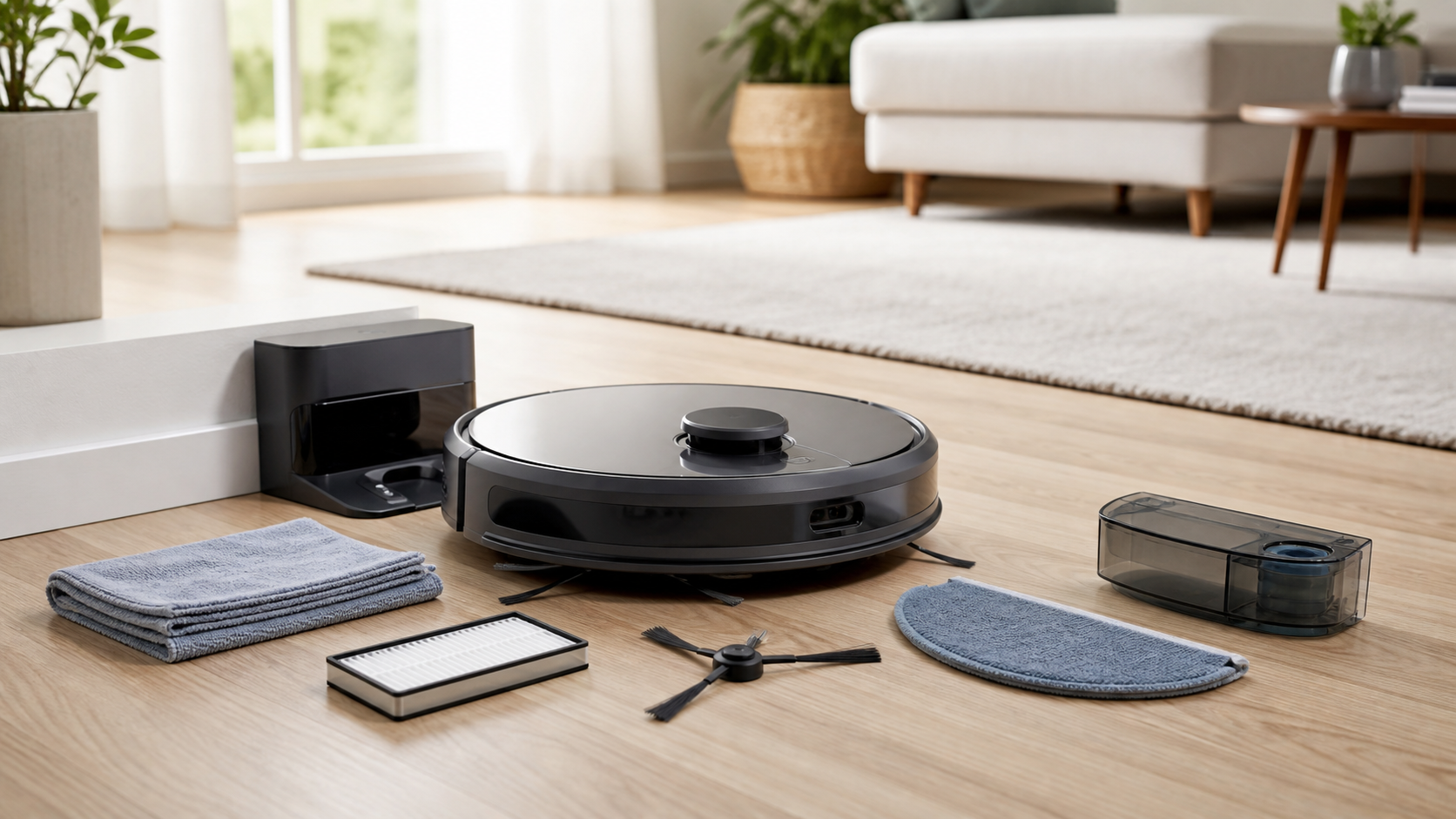
Keeping a Roborock clean is not one task. The robot, its brush, filter, sensors, and—if fitted—the auto-empty and mop-washing dock all collect different kinds of dirt. The fastest way to fix weak pickup, map errors, bad mopping, or a failed auto-empty cycle is to clean the part that actually handles that job.
This is a general maintenance framework, not a replacement for your model manual. Q5, Qrevo, Q10, Saros, and older S-series robots have different sensors, water paths, docks, filters, and reset procedures. Search the model name printed on the robot or dock in Roborock Support before disassembling anything.
Start with this 10-minute maintenance check
- Pause the robot and remove it from the dock if the manual requires it for the task.
- Remove hair and thread from the main brush, brush ends, and side brush.
- Empty the onboard dustbin and inspect the filter.
- Wipe the robot’s visible sensors and charging contacts with a soft, dry cloth.
- Wash or replace mop pads as required; empty the dock’s dirty-water tank if your model has one.
- If the dock uses a disposable bag, check whether it is full and that the bag and cover are seated correctly.
For a model with a mop-washing dock, also rinse the dock tray or cleaning module only as the manual instructs. Do not pour cleaning liquid into the robot dustbin or use it where the manual specifies clean water only.
What to clean, and when
| Part | Practical trigger | Safe general action | Important limit |
|---|---|---|---|
| Main brush and bearings | Hair wrap, noise, weaker pickup | Remove hair and debris; reinstall the cover fully | Check the exact model before removing caps or bearings |
| Side brush | Bent bristles, hair, edge misses | Remove trapped hair; clean monthly is common | Some models use a screw, others differ |
| Onboard dustbin | After a heavy run or weak suction | Empty it; rinse only if the manual permits | Let every washed part dry fully |
| Washable filter | Reduced airflow or maintenance reminder | Rinse only if it is a washable filter | Do not scrub the filter surface or reinstall it wet |
| Sensors and contacts | Navigation error, missed dock, monthly check | Wipe with a soft, dry lint-free cloth | No abrasive cleaner or liquid sprayed on sensors |
| Mop pads | Dirty, smelly, or poor mopping | Wash and air-dry; replace when worn | A dirty pad spreads soil instead of cleaning it |
| Clean / dirty-water tanks | Before dirty water smells or after regular mopping | Empty dirty water, rinse tank as the manual says | Do not use hot water if the manual says cold water only |
| Dock dust bag | Full-bag prompt or weak auto-emptying | Replace the disposable bag | Do not run compatible docks without a bag installed |
Roborock’s Qrevo-family manuals commonly call for filter cleaning every two weeks and replacement every 6–12 months, side-brush cleaning monthly, mop-pad replacement every 1–3 months, and sensor cleaning as required or monthly depending on the model. Treat those as starting points, not a universal promise: shedding pets, fine dust, carpet, and daily mopping shorten the interval. Example official Qrevo maintenance schedule.
1. Clean the brush system first when pickup drops
Hair trapped at the brush ends can reduce pickup before the brush itself looks dirty. Turn the robot over on a protected surface, open the main-brush cover using the model’s specified latches, and remove hair from the roller, ends, bearings, and cover. Check that the brush cover clicks fully back into place.
For the side brush, remove wound hair and inspect for a bent or damaged shape. Roborock’s manuals often list a monthly side-brush cleaning interval and a 3–6 month replacement interval, but your model’s manual has the final word.
Avoid corrosive fluids or disinfectants on brushes. If the manual permits washing a brush, air-dry it away from direct sunlight before reinstalling it.
2. Clean the dustbin and filter without trapping moisture
Not every filter is washable. If your manual calls it washable, remove it and rinse it gently. Roborock commonly warns not to touch a washable filter’s surface with hands, brushes, or hard objects. Let it dry fully—many manuals specify at least 24 hours—before putting it back. Using a spare filter while the washed one dries prevents downtime.
For compatible dustbins, rinse with clean water only. Do not add cleaning liquid to the dustbin: official manuals warn that it can cause blockage. If your model does not say its dustbin or filter can be washed, keep to dry cleaning and replace the consumable as directed.
3. Treat sensor cleaning as dry optical care
Use a soft, dry, lint-free cloth to wipe the visible sensor windows, the dock locator or communication sensor, the wall sensor, cliff sensors, carpet sensor, and any front or rear navigation window fitted to your model. Sensor locations differ by robot, so see the sensor-cleaning guide before looking for a specific window.
Do not spray cleaners directly on the robot. Roborock’s own maintenance guidance warns that abrasive cleaners can damage sensor covers. Roborock maintenance guidance.
4. Keep the mop and dock water path clean
If you mop often, the wet-maintenance work matters more than the suction rating. Empty dirty water promptly, rinse its tank as directed, clean the dock tray or cleaning module, and start each run with clean pads. A docked model may wash its pads, but the water tank, tray, filter, and maintenance brush still need inspection.
For water filters, remove and rinse them only when the exact manual says to. One Roborock Empty Wash Fill Dock manual directs users to unlock the water filter, wash it, wipe the cleaning tank with a soft dry cloth, then press the filter back until it clicks. Official dock-maintenance instructions.
What cleaning solution should you use?
Use only Roborock-recommended cleaner, in the location and dilution specified for your exact model. Some robots use a separate solution cartridge; others permit correctly diluted Roborock cleaner in the water tank; some manuals tell you to use clean water only. Roborock says alternative formulations and foam can damage the water tank or interfere with mopping. Official cleaner guidance.
Do not substitute bleach, disinfectant, dish soap, vinegar, essential oils, or a generic floor cleaner. They are not a harmless shortcut through a small pump, tubing, and dock.
5. Replace the bag—do not try to empty and reuse it
If your auto-empty dock has a disposable dust bag, replace it when full rather than trying to empty it. The removal handle on many Roborock bags seals the opening as you take it out. Wipe around the dock filter with a dry cloth, slide the new bag completely into its slot, and close the cover securely. See the complete Roborock dust-bag replacement guide.
A maintenance symptom map
| Symptom | Check before resetting or buying parts |
|---|---|
| Weak pickup | Main brush, brush cover, brush ends, filter, dustbin, suction inlet |
| Robot misses dock | Charging contacts, dock location, locator / communication sensor |
| Auto-emptying fails | App setting, DND window, dock cover, bag fullness, air path |
| Streaky or smelly mopping | Mop pads, dirty-water tank, dock tray, water filter, cleaner use |
| Navigation or cliff-sensor alert | Dry-clean sensor windows, check floor / rug condition, then use model-specific troubleshooting |
| Robot does not respond | Charge it, then use the least destructive reset described in the reset guide |
When to stop and contact support
Stop if you find cracked sensor windows, standing water inside electrical areas, an overheated dock, a torn power cable, a persistent burning smell, or a fault that returns after cleaning only the parts the manual identifies. Do not pry open a sensor or dock air path beyond the instructions for your model. Document the model number, voice or app error, date, and steps already tried before contacting Roborock support.
For maintenance questions that become a settings issue, use our Roborock reset guide. For Wi-Fi pairing or map changes, use the model-specific Roborock Support manual rather than guessing at button combinations.