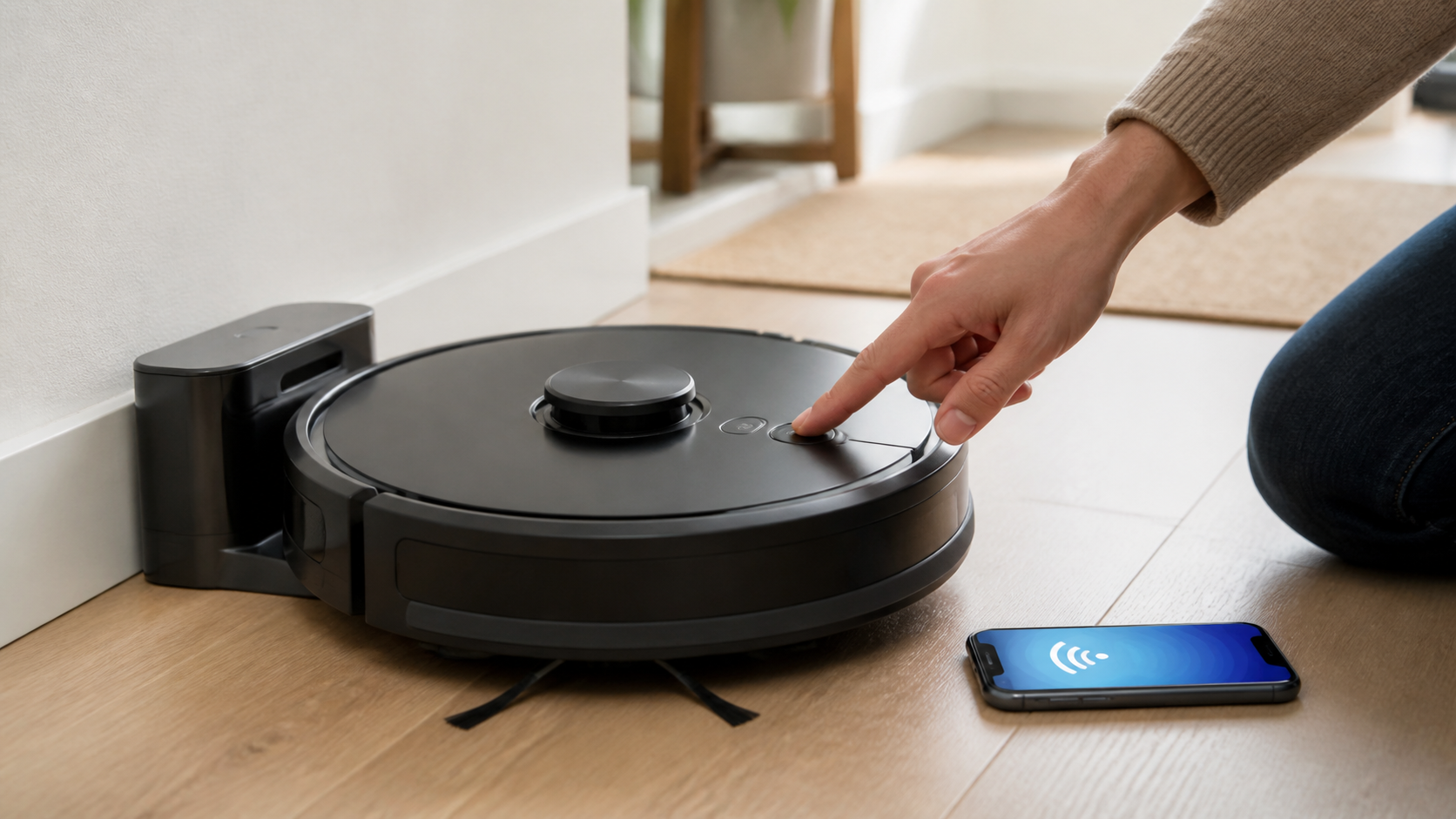
“Reset Roborock” can mean four very different actions. They do not have the same risk, and the exact buttons vary by model. Start with the least destructive option that fits the problem.
| What is wrong | Start here | What it may change |
|---|---|---|
| Robot is temporarily unresponsive | Restart / system reset in your model manual | Usually less disruptive, but behavior differs by model |
| New router, changed password, or app shows offline | Wi-Fi reset and re-add the device | Network connection; verify map behavior for your model |
| Persistent fault after basic maintenance | Model-specific system reset | Can restore certain settings on some models |
| Selling the robot or persistent software issue | Factory reset | Can remove maps, schedules, Wi-Fi, history, and settings |
Before you reset anything
- Put the robot on its dock or confirm it has adequate charge.
- Note the exact model name and the app or voice error.
- Clean the brush, filter, charging contacts, and relevant sensor windows.
- Check for a full dust bag, blocked air inlet, or misplaced dock if those symptoms apply.
- Open the matching manual in Roborock Support.
A reset will not remove hair from a brush, replace a full dust bag, repair a damaged charging contact, or make a 5 GHz Wi-Fi network compatible. Fix those first.
1. Restart or reset the system for an unresponsive robot
Look for a section called Resetting the System in your manual. On many newer models, it refers to a physical Reset button beneath the top cover; some require a power-button action as well. The location and result vary, so do not copy a reset sequence from an S5 into a Q5, Qrevo, or Saros.
For example, the Roborock Q5 manual separates “Resetting the System” from “Restoring Factory Settings.” That distinction is the reason to use the labelled system-reset step before a factory restoration.
2. Reset Wi-Fi when the app cannot connect
Wi-Fi reset is the right branch for a changed router, a new Wi-Fi password, or an offline app—not for a robot that physically cannot charge or navigate. In the Roborock app, choose Add Device after putting the robot into the pairing mode your manual specifies.
Common connection checks from Roborock:
- The robot supports 2.4 GHz Wi-Fi, not 5 GHz only.
- Confirm the home-network password; do not select the robot’s temporary Wi-Fi as the home network.
- Allow the app location permission; on newer iPhones, allow Local Network access.
- Turn off a VPN or cellular data while pairing if it is interfering.
- WEP encryption is unsupported; WPA or WPA2 is recommended by Roborock.
Roborock’s Wi-Fi troubleshooting has the full current checklist. If a retry fails, reset Wi-Fi again and follow the in-app sequence exactly; pairing mode can time out.
3. Factory reset only after you understand the data loss
Factory reset is the last home troubleshooting step, not a synonym for restarting. Roborock’s generic factory-reset instructions for older models state that it disconnects Wi-Fi, restores the original firmware state, and deletes schedules, maps, and cleaning logs. Official factory-reset warning.
Back up or note anything you will need again—maps, room labels, no-go zones, routines, Wi-Fi name, and schedule—then use only the factory-restoration steps in your exact manual. After the reset, re-add the robot, update firmware if applicable, and recreate maps and schedules.
How to reset a Roborock Q5
For Q5 owners, do not use an article that says every Roborock needs the same three buttons. Roborock’s Q5 documentation identifies a Reset button for a system reset and a distinct factory-restoration procedure involving the power control plus the Reset button. Use that manual’s current instructions and keep factory restoration for a persistent issue or device handoff.
If you reset a Q5 because it will not charge, clean the robot and dock contacts first and make sure it reports that it is charging when seated. Roborock’s support guidance says a correctly seated robot announces charging; if it does not, confirm dock power and placement before treating it as a software issue. Official charging check.
When a reset is not the next step
| Symptom | Better first action |
|---|---|
| Auto-emptying does not run | Check app setting, DND, cover, dust bag, and air path |
| Robot leaves debris | Clean brush ends, filter, dustbin, and inlet |
| Cliff sensor message | Dry-clean the correct underside sensors; test on a normal hard floor |
| Will not dock or charge | Wipe contacts and inspect dock power, location, and obstructions |
| Mop washes poorly | Empty dirty water, clean pads and tray, check water filter and tank seating |
Use our Roborock maintenance guide and sensor-cleaning guide to cover those basics. If the same error persists after the model’s recommended steps, contact Roborock support with the model number and exact error rather than repeatedly factory-resetting it.