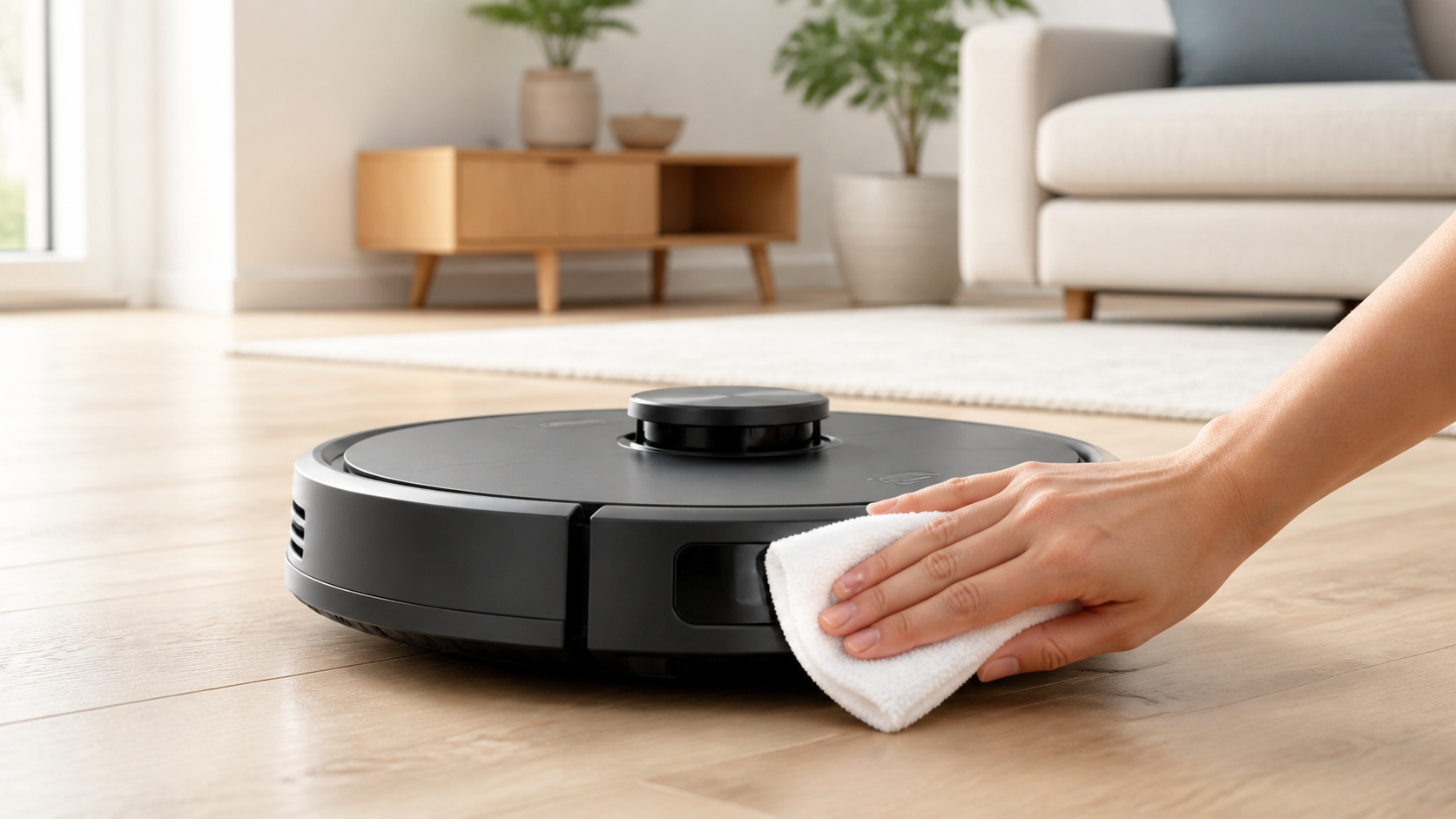
Roborock sensors are optical windows, not dirt you should scrub away. The safe default is simple: wipe the visible sensor surfaces with a soft, dry, lint-free cloth. Do not spray them, use abrasive cleaner, or take the robot apart because a sensor is dusty.
The exact sensor layout changes across Q5, Qrevo, Q10, Saros, and S-series machines. Use the diagram in your model manual before assuming a sensor is missing or trying to clean a panel that is not a sensor.
Safe sensor-cleaning steps
- Stop the robot and make sure it is not cleaning, charging, or auto-emptying.
- Use a dry microfiber or lint-free cloth.
- Wipe each visible sensor window gently; do not press hard at edges or seams.
- Wipe the robot and dock charging contacts with the same dry cloth.
- Place the robot back on a clean, level floor and retry the task that failed.
Roborock’s manuals instruct owners to use a soft, dry cloth on the sensors and charging contacts. The exact list can include a dock locator, obstacle-recognition sensor, wall sensor, communication sensor, carpet sensor, and cliff sensors. Example official maintenance diagram.
Find the right sensor before cleaning it
| Sensor or surface | Usual role | Typical location | Is it on every Roborock? |
|---|---|---|---|
| Front obstacle / navigation window | Finds objects or maps the room | Front face or upper front | No |
| Wall sensor | Follows walls and furniture edges | Usually right side | Common, but location differs |
| Cliff sensors | Detects drops and stairs | Underside near the perimeter | Common |
| Carpet sensor | Detects carpet for suction or mop behavior | Underside | Model-dependent |
| Dock locator / communication sensor | Helps find and align to the dock | Front or underside | Model-dependent |
| Rear navigation / optical-flow sensor | Supports premium navigation systems | Rear or underside | Premium-model dependent |
| Charging contacts | Transfers power | Robot underside and dock | Common |
For example, the Q5 manual lists a dock locator, wall sensor, and cliff sensors, while newer Saros models can add front and rear navigation, optical-flow, carpet, and other sensors. Q5 official maintenance diagram. The names above tell you what to look for; the manual tells you where it is on your robot.
What not to use
- Wet wipes or sprayed liquid directly on a sensor window.
- Abrasive pads, paper towels that scratch, or harsh household cleaner.
- A brush, pin, or tool pushed into a sensor seam.
- A disassembly guide intended for a different model.
Roborock’s maintenance guidance specifically cautions against cleaning solutions and abrasive products on sensor covers. Official maintenance article.
If the robot says to clean cliff sensors
Clean the underside sensor windows first, then check the surface where the error occurs. Very dark, highly reflective, thick, or shag surfaces can affect how a robot interprets a drop or boundary. Move the robot to a plain, well-lit hard floor to see whether the alert changes.
If the error remains after a careful dry wipe and a retry on a normal floor, stop there. The next step is the exact model’s support flow, not opening the sensor assembly. Record the model, the voice or app error, the surface, and which sensors you cleaned.
If the robot will not find its dock
Wipe the charging contacts on both the robot and dock, then clean the dock locator or communication sensor identified in your manual. Also check that the dock is powered, level, and in the clearances specified by your model. A clean sensor cannot compensate for a dock that is unplugged, moved, or blocked by furniture.
For the rest of the routine, use our Roborock maintenance guide. If cleaning does not restore normal behavior, use the least destructive option in our Roborock reset guide rather than factory-resetting immediately.